In this article, I provide two Word templates for creating and printing 3.5-inch and 5.25-inch floppy disk sleeves. The files were created by Massimiliano Gnecchi, whom I thank for sharing them with the ValorosoIT community.

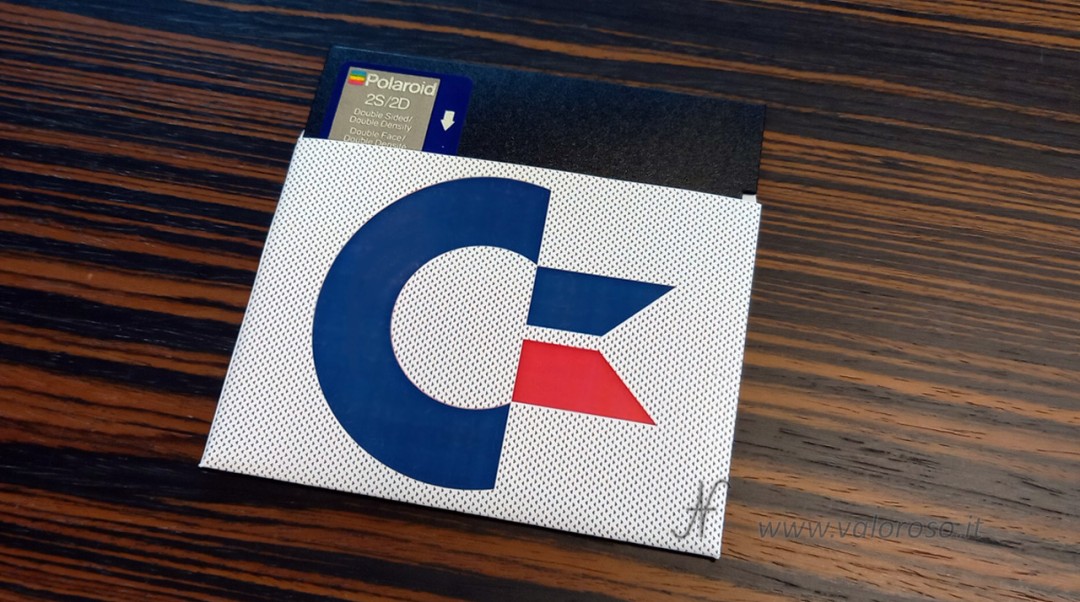
5.25-inch floppy disk sleeve:
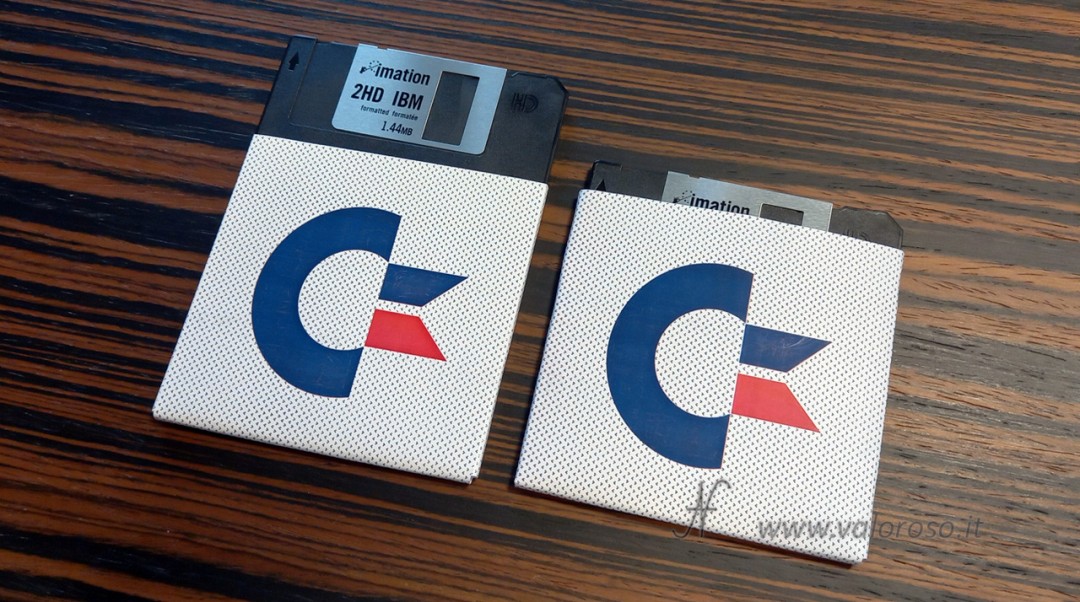
3.5-inch floppy disk sleeve:
The Word template for the 5.25-inch floppy disk sleeve
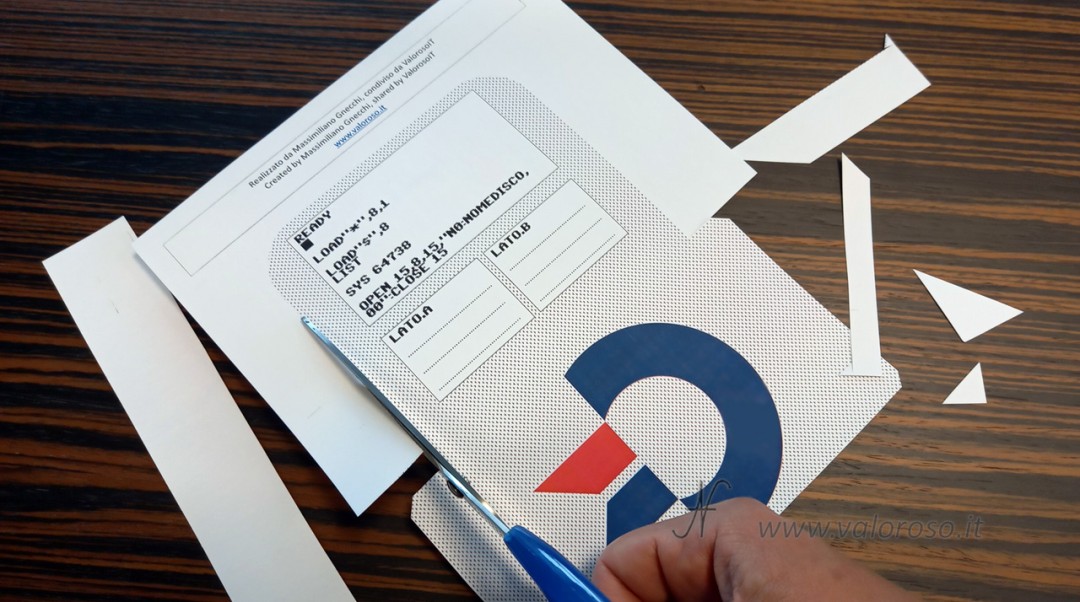
The document contains the floppy disk sleeve design and the LATO.A and LATO.B fields, where we can list the contents of the two sides of the disk. You can also translate LATO.A with SIDE.A and LATO.B with SIDE.B.
Here is the link to download the Word template for the 5.25-inch floppy disk sleeve:

https://www.valoroso.it/wp-content/uploads/Floppy-5-25-cover.docx
Download and install the C64 Pro font
To display the text on the floppy disk sleeve correctly, we need to install C64 Pro, included in the C64 TrueType v1.2.1 package created by Style. The package includes C64 Pro and C64 Pro Mono:
https://style64.org/c64-truetype
The procedure described here works with Windows 10 and Windows 11. After downloading the ZIP archive containing the font, we extract it to a temporary folder of our choice. We open the extracted folder, enter the fonts subfolder and look for C64 Pro. For this template, we use the TrueType file with the .TTF extension. We right-click the file and select Install or Install for all users.

Paper and print settings
To make the sleeve sturdier than one printed on standard 80 g/m² office paper, we can use 160 g/m² paper. Before printing, we check the print preview and keep the scale at 100%, avoiding any automatic scaling that could alter the dimensions. We also select a good print quality.
Cut, fold and glue the sleeve
After printing, we cut out the sleeve following its outline.
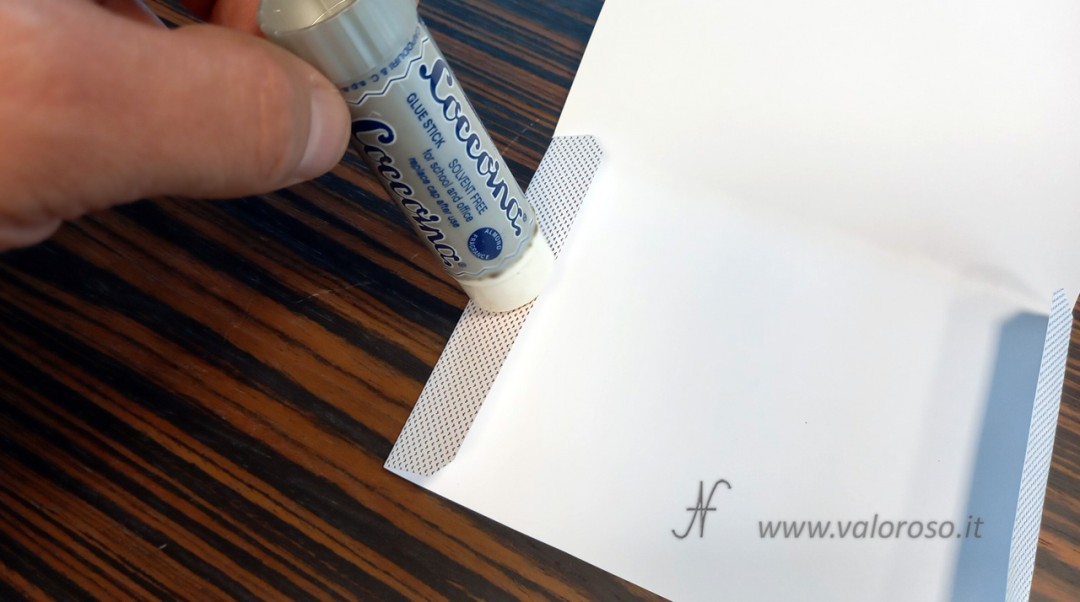
We fold the different sections and glue the tabs using a glue suitable for paper, such as UHU Stic, Pritt Stick or an equivalent product. We use only a small amount of glue and let the sleeve dry thoroughly before inserting the floppy disk.
3.5-inch floppy disk sleeve
Massimiliano Gnecchi also created a Word template for creating 3.5-inch floppy disk sleeves, which I am sharing on ValorosoIT.
https://www.valoroso.it/wp-content/uploads/Floppy-3-5-cover.docx
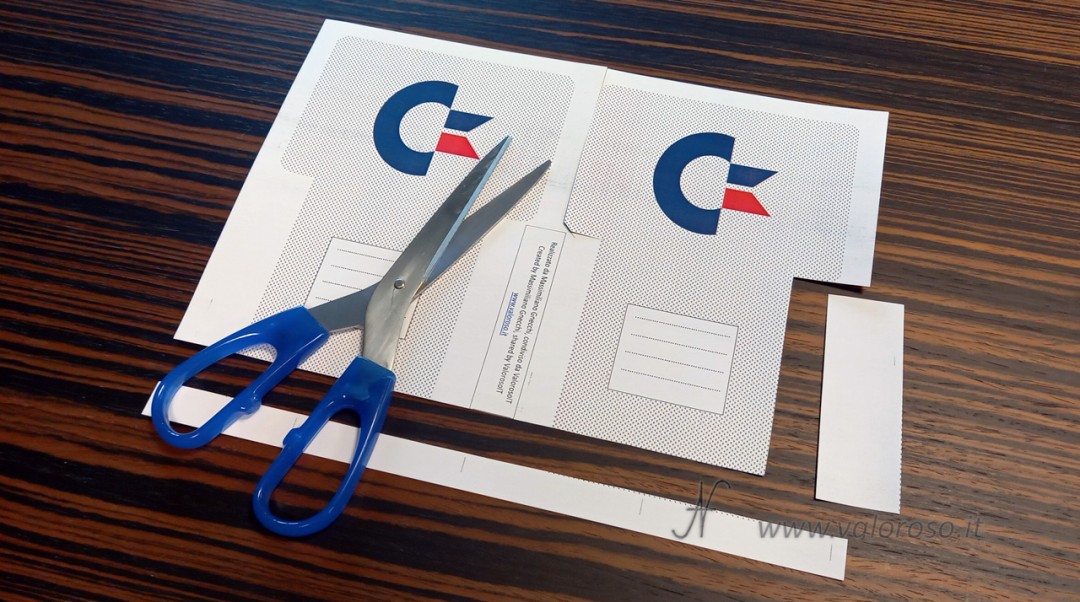
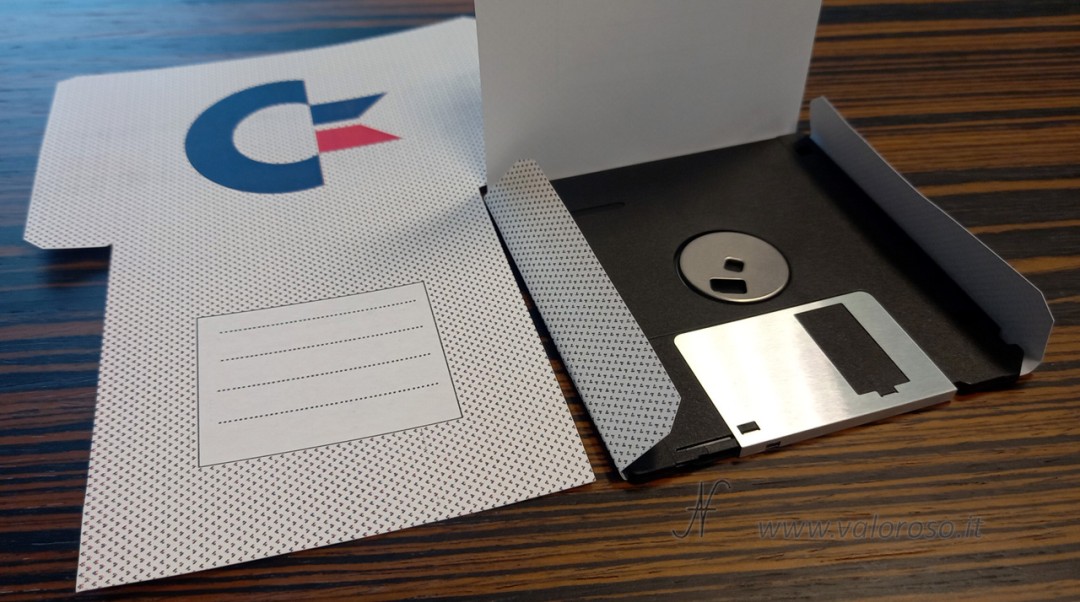
After printing and cutting out the cardstock, I recommend using a 3.5-inch floppy disk directly as a template: insert the floppy into the sleeve and fold the cardstock around the disk, so you can accurately match its thickness and the position of the folds. Keeping the floppy disk inside as a template, you can then glue the tabs of the sleeve, taking care not to let the glue come into contact with the floppy. This way, the sleeve will keep the correct dimensions while the glue dries.
If we want to further customize the sleeve with a font reminiscent of the Commodore Amiga, I recommend the Topaz_a1200_v1.0.ttf font. It is available in the amigafonts project, in the ttf folder:
https://github.com/rewtnull/amigafonts
To install it on Windows, we can follow the same procedure already described above in the section about the C64 Pro font.
Storing and cleaning floppy disks
Before inserting an old floppy disk into the drive, we check its magnetic surface. If we notice circular stains on the magnetic surface, they could be mold and could damage the drive. On ValorosoIT, I have already shown how to clean 3.5-inch floppy disks using the RetroManiak tool, which allows us to rotate the disk manually and gently clean its magnetic surface with a soft microfiber or cotton cloth. The same procedure can be used for 5.25-inch floppy disks, using the appropriate tool.
Keep following me on ValorosoIT for more tutorials, downloadable files and content dedicated to vintage computers and vintage electronics.
Related articles:
solder Soldering Tutorial, Commodore MP32C64

Commodore 501: battery replacement

Commodore 64 Vs modern PC?

Commodore 64 and home automation: load control
Christmas program for Commodore 64

Kung Fu Flash for Commodore 64, review

VICE emulator for 8-bit Commodore
How to clean 3.5-inch floppies

Easy Script, video writing for Commodore 64

Write and read a file in Basic, Open Close Print# Input#, # 6

Si stava meglio negli anni '80 oppure oggi?

Commodore PET, CBM 8032

RGB - SCART Video Adapter for Commodore Amiga
SD2IEC floppy emulator for Commodore 64
Commodore 64 Basic V2 Command List

A friend gave me an Atari 1040 ST!
Modern accessories and games for Commodore, with Vincenzo Bono